How DNS filtering keeps kids safer on a Windows PC.
FamilyProtect filters at the DNS layer: every site lookup on the PC is checked before the page loads, under every browser and app, not just one. Create an account, install on each PC, choose protections, and manage everything from one dashboard.
The flow
Four practical steps
Create your family account
Start from the FamilyProtect app and choose the protections your household needs.
Install on each Windows PC
Run the installer on the computers your kids use. Each device reports back to your family dashboard.
Turn protection on
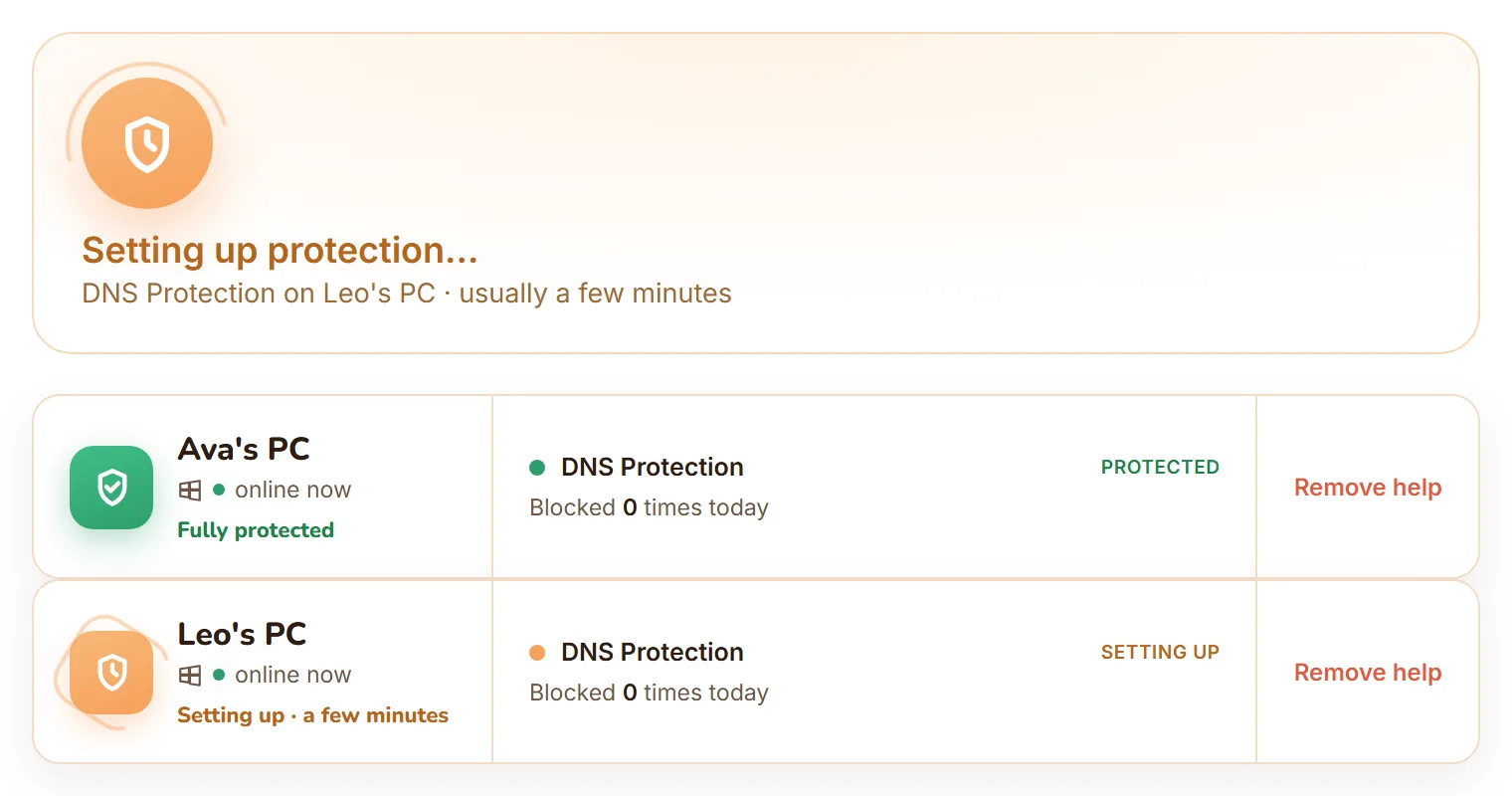
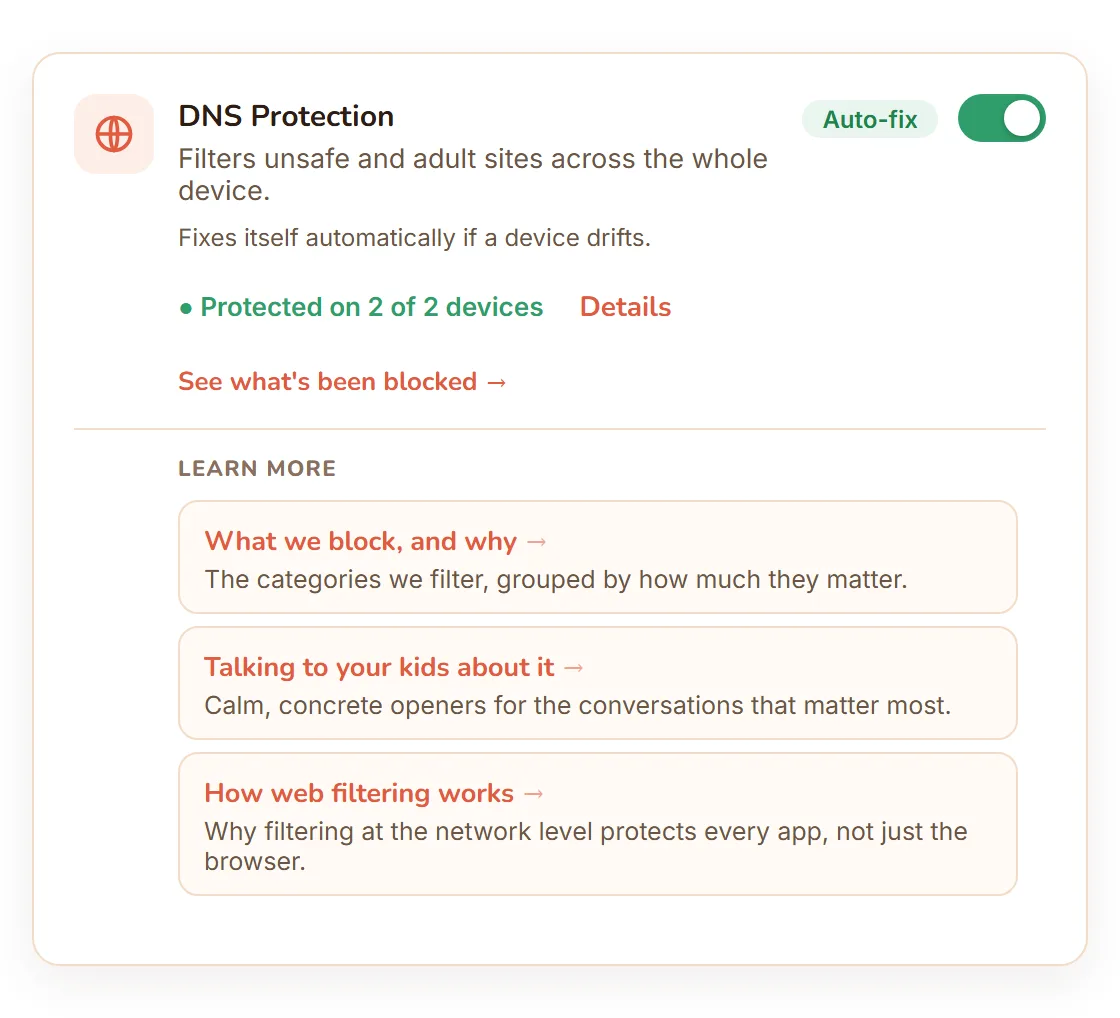
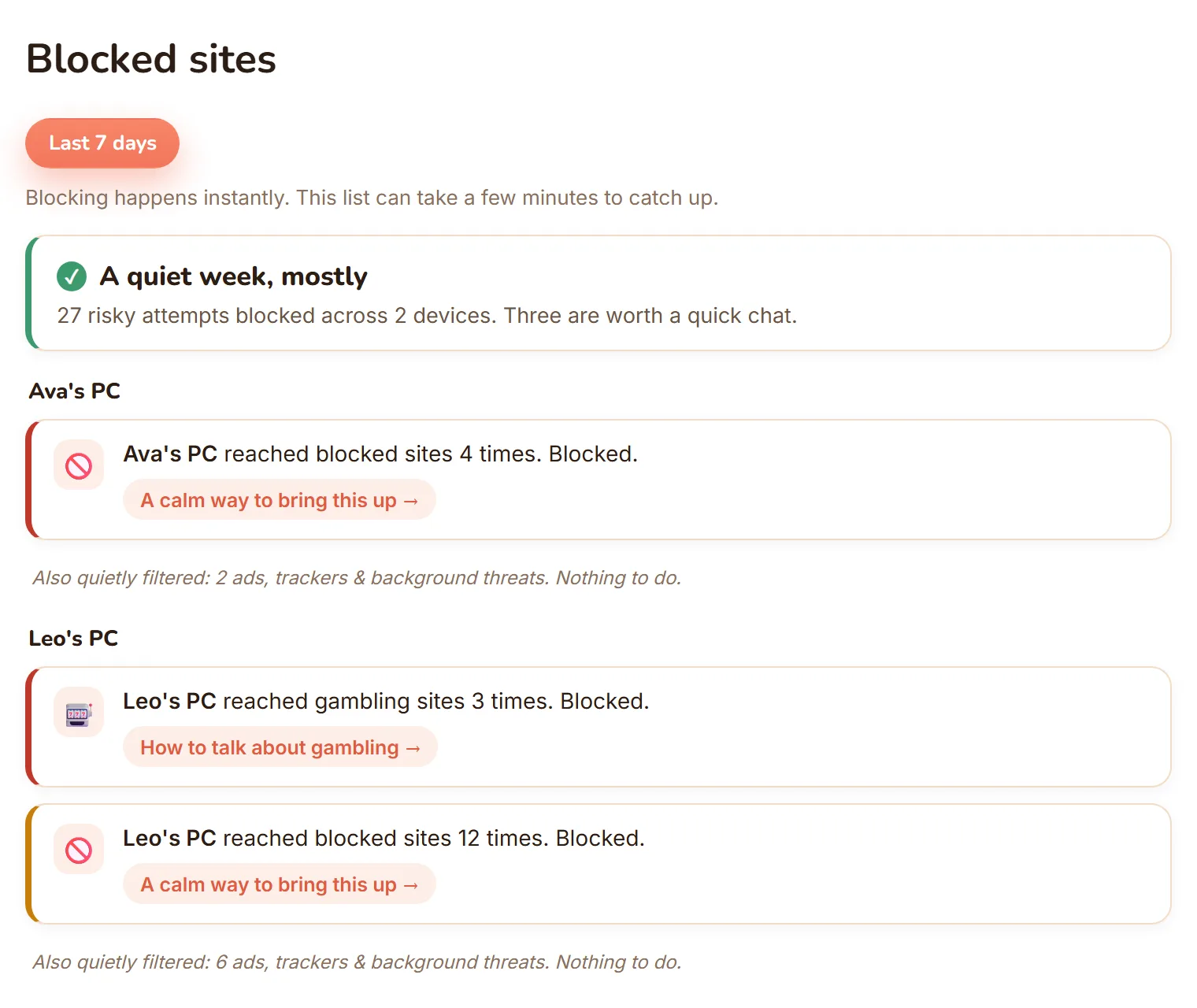
Enable DNS Protection from one simple dashboard. Harmful content is filtered on that PC, and every block shows up in your reports.
Stay in control
Add PCs, adjust what's protected, and see what's being blocked, all from your dashboard whenever you need to.
The mechanism
What DNS filtering actually does
Every device on the internet turns a site name into an address with a DNS lookup before it can load anything. FamilyProtect sits at that layer on the PC itself. Each lookup is checked against harmful categories, and anything that matches is blocked before the page ever starts to load, so there's nothing to load and close, no ad to flash past, and no partial page to see.
Because the check happens beneath the browser, it doesn't matter which app made the request. Content filtering that only lives inside one browser, like a built-in parental control that only covers Edge, leaves every other browser and any app with its own web view wide open. DNS filtering covers the whole PC: install a second browser, and it's filtered exactly the same as the first.
A determined kid's next move is usually to try to get around it, so the protection blocks the common escape routes too. Turning on encrypted DNS (DoH) to hide lookups from the filter is blocked and logged as a bypass attempt for the endpoints we know about, not quietly allowed. VPN and anonymiser domains are blocked the same way. The same layer blocks the domains malware uses to phone home, not just the sites someone browses to. If a setting does get changed, protection repairs itself within minutes rather than staying off. Pairing it with a standard, non-administrator Windows account for your child closes the last gap, since an admin account could otherwise disable the software outright. And because filtering runs on the PC rather than the home router, it keeps working when the laptop goes to school, a friend's house, or anywhere else off your home Wi-Fi.
What you'll see
The journey, step by step
Before you start
What you need
- A Windows PC your child uses
- A parent-controlled account to manage settings
- A few minutes to install and confirm the device appears
- A child account that is not a local administrator
Need the exact install walkthrough? Read the Windows installation guide. For everything that comes with a plan, see the features page.