Putting your child on a standard Windows account
A Standard Windows account for your child is what makes FamilyProtect’s protection impossible to switch off. Setting one up safely takes a few minutes, and it does not touch any of your child’s files, apps, or settings.
Why does this matter?
FamilyProtect is built to resist tampering, but that guarantee only holds while your child’s everyday account is a Standard Windows user, not an Administrator. An administrator account can change any setting on the PC, including the ones that would turn protection off. A standard account cannot.
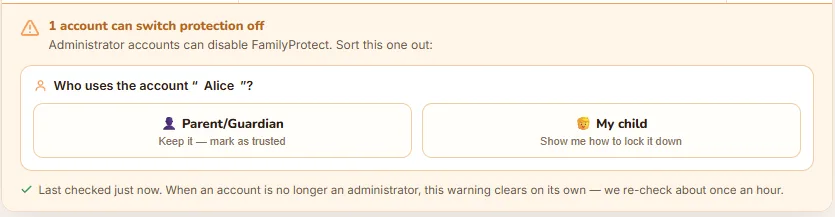
If your dashboard shows an amber warning about an administrator account, it means FamilyProtect found an account on this PC with administrator rights, the kind of account that can turn protection off. It does not assume who uses it. It asks you, so you can keep your own account and switch your child’s to a standard one. If the flagged account is your child’s, this guide walks you through the fix.
How do I check if my child is an administrator?
- On the child’s PC, open Settings.
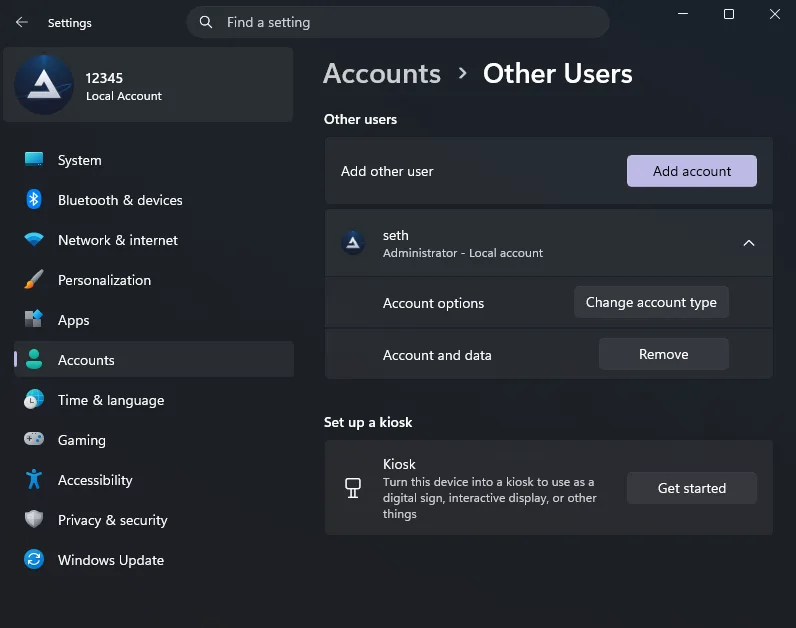
- Go to Accounts, then Your info (if you’re signed in as your child) or Family & other users, shown as just Other users on some versions of Windows 11 (if you’re signed in as an administrator and looking at another account).
- Under the account name, Windows shows the account type: Administrator or Standard user (sometimes just “Local account” with no label, which also means standard).
If it says Administrator, follow the steps below.
Setting it up safely
Do these steps in this order. Doing them out of order can lock everyone out of admin access on the PC, so don’t skip ahead.
- Create or confirm a parent administrator account first. In Settings > Accounts > Family & other users, check whether you (the parent) already have your own administrator account on this PC. If not, add one now and set it to Administrator.
- Sign into that parent account once, before you change anything else. Sign out of the child’s account and sign in to the parent administrator account you just confirmed or created. Confirm you can reach Settings > Accounts from there. This step proves the parent account actually works, so you are never left without an administrator on the PC.
- Only then, change the child’s account to Standard. Still signed in as the parent administrator, go to Settings > Accounts > Family & other users, select the child’s account, choose Change account type, and set it to Standard user.
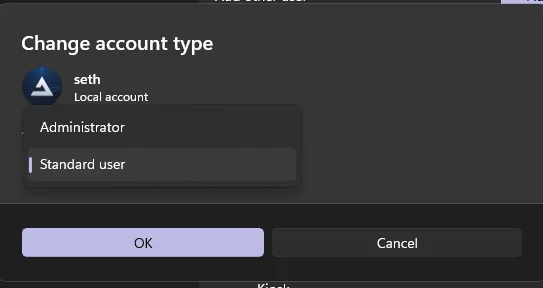
That’s it. The child’s desktop, files, installed apps, browser history, and settings all stay exactly as they were. Changing an account’s type keeps the same account; it does not create a new one and does not delete anything.
What if my child’s account is the only one on the PC?
Follow the same order, just with an extra first step:
- While signed in to your child’s account (which is still an administrator at this point), go to Settings > Accounts > Family & other users and click Add account. Set up a new account for yourself and make it an Administrator.
- Sign out and sign in to your new parent account to confirm it works.
- From your parent account, open Settings > Accounts > Family & other users, select your child’s original account, and change its type to Standard user.
Your child keeps using their original account, with everything on it exactly as it was. It just stops being an administrator account.
What if the flagged account is mine, not my child’s?
Sometimes the account the warning points at is your own, because you use an administrator account on the same PC. That is fine, and you do not have to change it. On the warning, where it asks Who uses the account, choose Parent/Guardian, the option that keeps it and marks it as trusted. The warning clears for that account straight away, and it stays cleared.
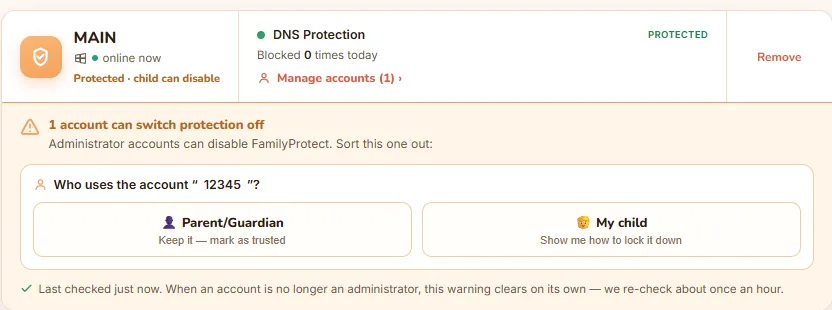
FamilyProtect then asks where to trust it. If you use the same account on more than one PC, choose All my PCs and you will not have to repeat this on each computer. Otherwise choose Just this PC.
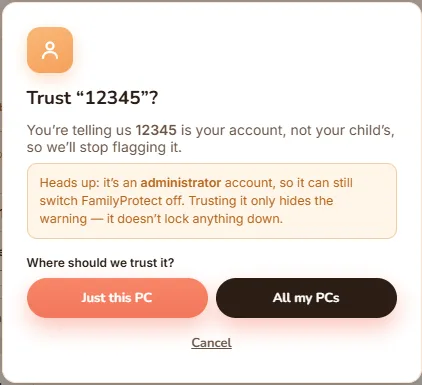
Trusting an account is easy to undo. If you ever want the warning back, open the trusted list on that device and remove it. And if a brand new administrator account appears later, FamilyProtect flags it again, so trusting your own account does not hide a change you would want to know about.
Do I need to reinstall anything?
No. FamilyProtect keeps running through the whole process; there is nothing to reinstall and nothing to reconfigure. Once the child’s account is Standard, the amber warning in your dashboard clears on its own, usually within a few minutes.
Related reading
If you haven’t installed FamilyProtect on this PC yet, start with installing FamilyProtect on a Windows PC. If you’re wondering what happens when a child’s account can still reach admin settings, see when kids try to bypass web filters.
You can check the warning has cleared any time from your dashboard. Still stuck? Get in touch and we’ll help you sort it out.