Getting the installer onto the other PC
Open a browser on the PC you want to protect and type one short link, made of three ordinary words. The installer downloads straight to that machine. No USB stick, no emailing yourself a file, and no signing in on your child’s computer. Getting the software onto the other PC is the step every parental control tool waves at and nobody solves. Here is how we did.
Why is the second PC the hard part?
Think about where you actually are when you set this up. You are signed in to your dashboard on your own laptop, at the kitchen table, in the ten minutes you carved out for this. The PC you want to protect is upstairs in a bedroom, or in the corner of the front room, and your child is probably on it.
Every tool you have tried handles that moment the same way. It gives you a Download installer (.msi) button, the file lands in your Downloads folder, and there the help stops. The file is on the wrong computer. Now it is your problem: find a USB stick, or email it to yourself and go and open your inbox on your child’s PC, or set up a shared folder. None of those are hard exactly. They are just enough friction to end the evening, and the setup never gets finished.
Here is the honest reason nobody just hands you a plain download link on the other PC. Your installer is unique to your family account. That is what quietly connects the PC to your dashboard, so that when it appears in Your devices it is your device, in your family, and not somebody else’s. A file like that cannot sit at a public web address for anyone to grab. But the sign-in that proves it is yours is on your laptop, and your laptop is not the machine that needs the file.
So the real problem is not downloading. It is carrying proof from one computer to another without making a parent carry a USB stick up the stairs.
How do I get the installer onto it?
Add a device gives you two routes, and you pick the one that suits where you are standing.
The first is the familiar one. Download installer (.msi) puts the file on the laptop you are already using, and you move it across on a USB stick or a shared drive. If the two machines are next to each other, or you already have a stick in the drawer, this is fine and it is still there.
The second is the one that saves you the trip. Create a 24-hour link turns your account’s proof into something you can carry in your head: a short web address made of three ordinary words, like app.getfamilyprotect.com/get/rabbit-basket-window. Walk to the other PC, open any browser on it, type the address, and the installer downloads straight there. You do not sign in to FamilyProtect on your child’s computer. You do not type anything into the installer either. The link’s only job is to fetch the right file on the right machine.
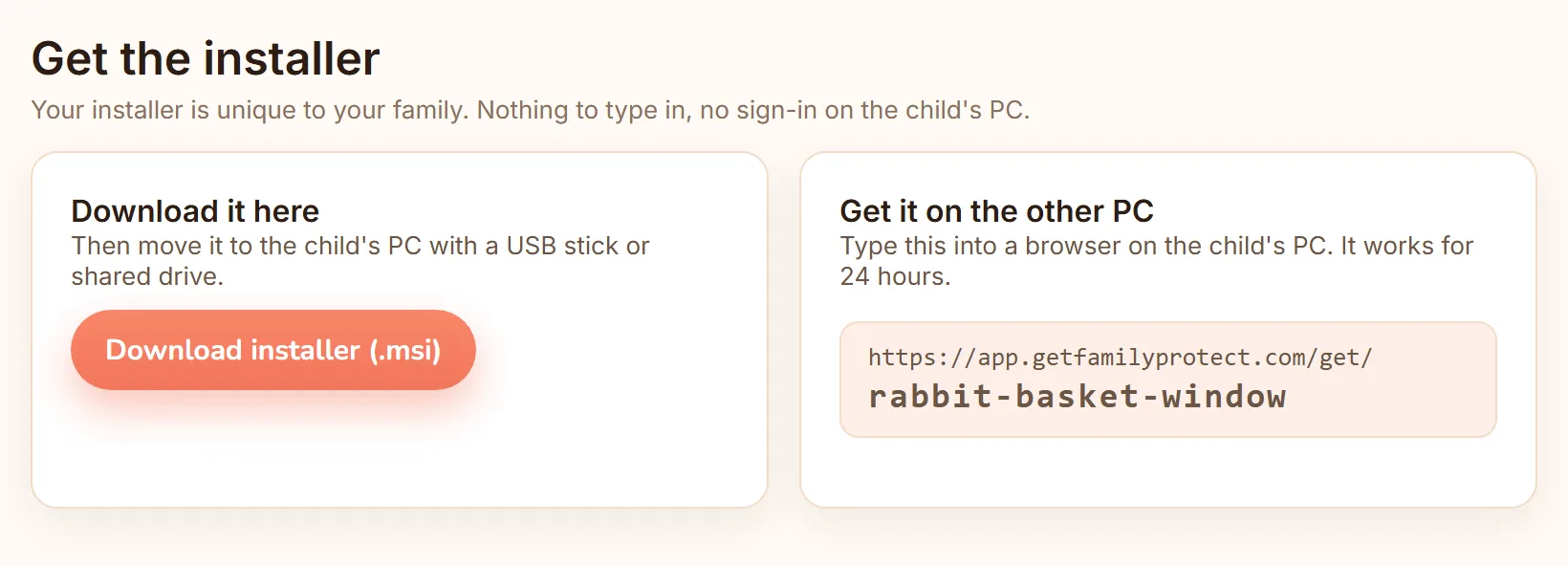
The link works for 24 hours, and you can create a fresh one whenever you want, so there is nothing to lose or keep safe. Run the installer, approve the Windows administrator prompt once, and that is the whole job on that PC.
Why three words instead of a code?
It used to be six characters, something like J594KH. On screen that looks tidy. In a house it falls apart.
Picture the actual moment. You are at the kitchen table with the code on your laptop and the PC is upstairs, so you call it out. Is that a five or an S? A B or a D? And every character needs the shift key, on a keyboard you are hunched over sideways. You get one character wrong, the page says the link has expired, and now you genuinely cannot tell whether you mistyped it or something is broken. That is a bad thirty seconds to hand a parent who is already doing you the favour of trying.
Three ordinary words survive all of that. “Rabbit, basket, window” can be shouted up a staircase, remembered for the length of the walk, and typed by someone who is not looking at it. The words are drawn from a curated list, so you never get anything you would rather not read aloud to a child.
Typing it is forgiving too. Capitals do not matter, and if you put spaces or underscores where the hyphens go, it still works. On the security side, the link is single-purpose and short-lived: it fetches your installer for 24 hours and then it is gone.
How do I know it worked?
You do not have to work it out. The guided setup watches for the PC itself.
Once the installer has run, leave the page open on your laptop and it keeps looking. When the PC appears, the flow moves on by itself, usually within a few minutes. Nothing to refresh, no code to compare, no wondering whether the silence means it is working or you missed a step.
If it has not turned up after ten minutes, the page stops waiting quietly and shows you its own troubleshooting tips, right there. That is deliberate. Ten minutes is roughly when a person starts to suspect they did something wrong, and that is exactly when a page should offer help rather than a spinner.
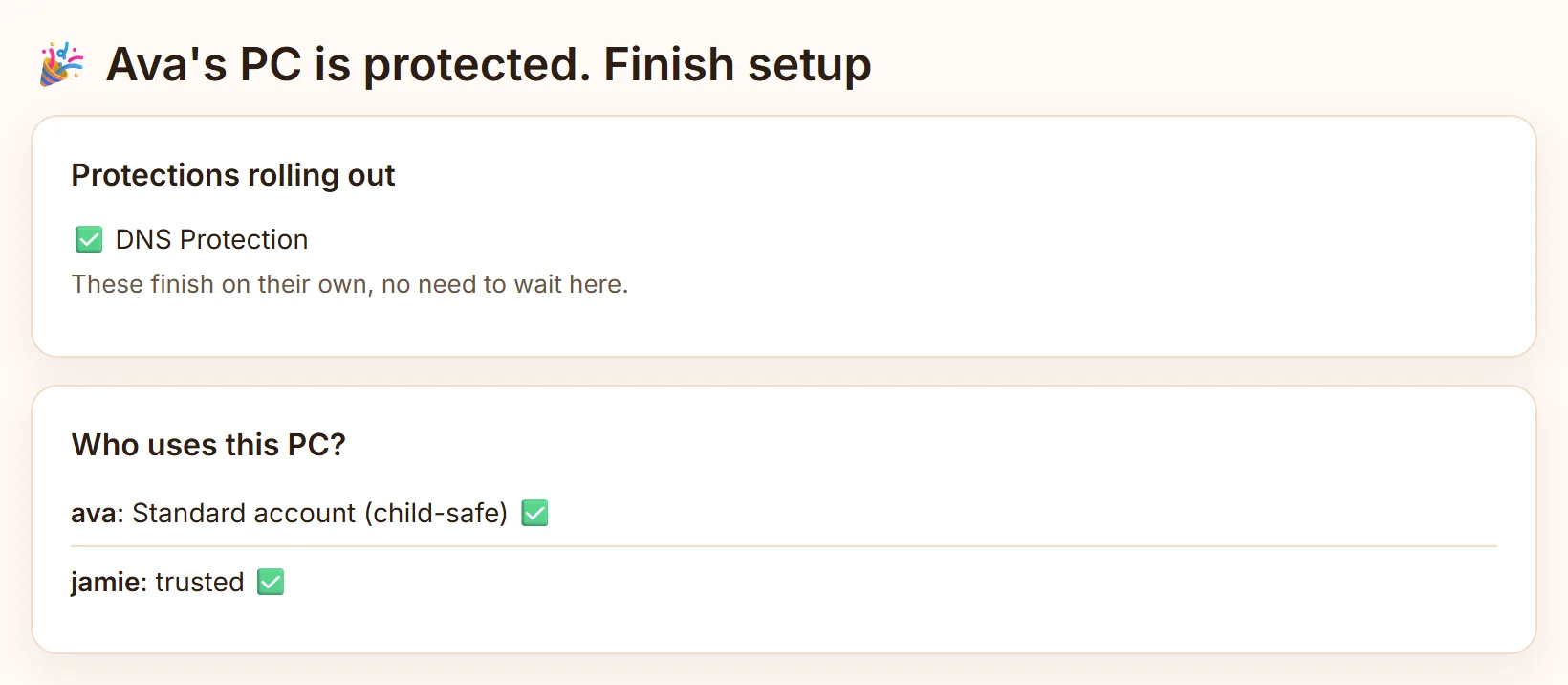
The last step tells you two things worth knowing. It lists the protection that is rolling out to the PC, so you can see what is arriving rather than trusting that something happened. And it lists who uses the PC: the Windows accounts on that machine, and which of them are child-safe standard accounts. That second list is often the more useful one, because a child on an administrator account can undo things a child on a standard account cannot. Better to learn that now than months later. For what starts protecting the PC from this point, there is how DNS Protection works on Windows.
FamilyProtect runs on Windows PCs. The same flat price covers every Windows PC in your home, so there is no reason to leave the awkward one until later. The numbers are on pricing.
Ready to set up the PC in the other room? The full walkthrough, step by step, is in installing FamilyProtect on a Windows PC.